

Use this guide to update key names for existing Figma and AdobeXD projects

This post is to support Applanga users who are localizing at the design stage using the Figma or AdobeXD plugin. With the most recent update to the design plugins, users are now able to name their keys during the initial upload of the project. However, we know many users started with previous versions of the plugin or did not have the opportunity to use the key naming feature. To help those users, we penned the guide below to help you add useful keys to your entries uploaded from Figma.
For more information about the Applanga integration with Figma, please see the Integration documentation or our Localization at the design stage guide.
This option allows users to use one Applagna project to link existing entries to a Figma or AdobeXD project during the upload via the plugins. This option also allows users to save previously generated keys to the Figma or AdobeXD project. Users can skip steps 1 and 2 if you already have a project with the entries that also exist in the Figma file.
Create a new project on the Applanga Dashboard.
Use the manual import (or other integration option) to upload an app’s content to the Applanga Project, including the key with a naming convention that you prefer.
Next you will need to integrate the Applanga Project with the Figma or AdobeXD project.
Once the Figma file is connected to the Applanga Project, click the Upload button on the Applanga plugin.
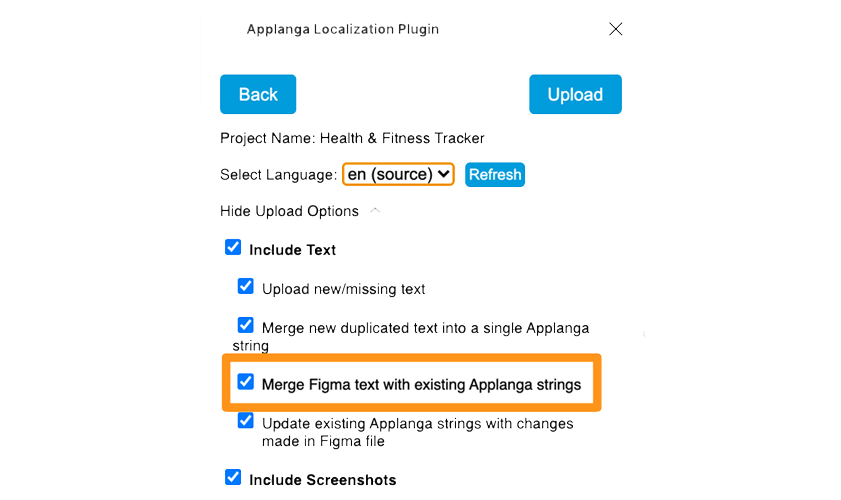
The plugin will then save the existing keys from the Applanga Project instead of generating new ones.
This option requires two Applanga Projects and the use of the Translation Memory (TM) feature. Users must first approve and publish translations before they are added to the TM. If the Applanga team does not yet have a TM, you will need to create one using the steps outlined here.
Add existing, published translations from the original project to the Applanga Translation Memory using the steps described here.
Create a second project for a fresh upload of the Figma content.
Before uploading the Figma file content to the new project, you will need to remove all existing Applanga linking to the Figma file via the Applanga plugin.
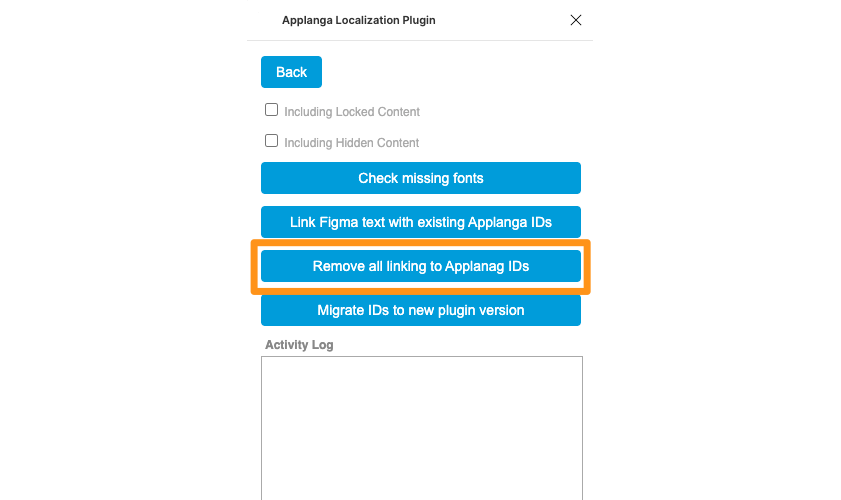
With the previously saved keys removed, now you can upload the Figma or AdobeXD content to the new project.
Apply TM to the new project.

A guide for using Over-the-Air updates and pluralization with React-Native and Applanga
Read the Full Article
Are you wondering which keys stored in your Applanga projects are actually used in your app and which ones are just dead weight?
Read the Full Article