

How to Use Machine Translation in GL Strings
GlobalLink Strings allows all users to translate their app content using machine translation.
GL Strings offers an integration with GlobalLink Now, TransPerfect’s proprietary machine translation technology.
By default, we use TransPerfect’s generic neural machine translation engines. This feature is available to all users in GL Strings, regardless of their license type.
However, teams can request that we instead configure third-party engines or custom engines that we train using our technology.
If you would like to find out more about our machine translation services, feel free to contact us at support@applanga.com or use the support chat in the bottom right corner of the website.
Your license tier includes a monthly quota of words that can be translated with our machine translation feature.
This limit is calculated based on the total number of words machine-translated across all your projects:
The number of machine-translated words used across all projects is displayed at the top of the project dashboard:

If you exceed your monthly quota, the machine translation feature will be unavailable until the start of the next month.
📝 Note: Different conditions apply to teams using third-party engines or custom engines in GL Now. For more details, please reach out support@applanga.com or use the support chat in the bottom right corner of the website.
There are different ways to apply machine translation in the Editor.
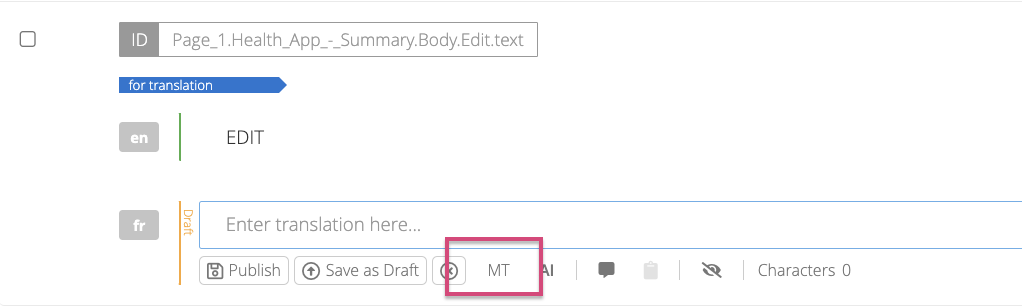
If you’re translating or reviewing translations on the Editor and want to use machine translation on a single string:
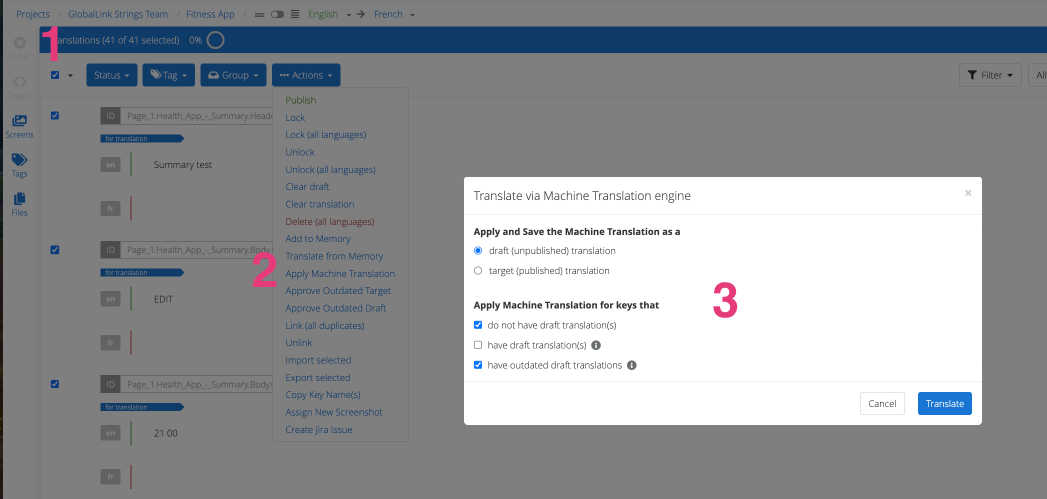
If you want to translate multiple strings in one go:
Generally, in localization workflows, machine translation is used to obtain fast, temporary translations that are then reviewed and fine-tuned by a human translator.
Teams that use this workflow in GL Strings often need to establish a process to coordinate, hand over, and complete these reviewing tasks promptly and efficiently.
To that end, we introduced a machine translation rule to our set of existing workflow rules.
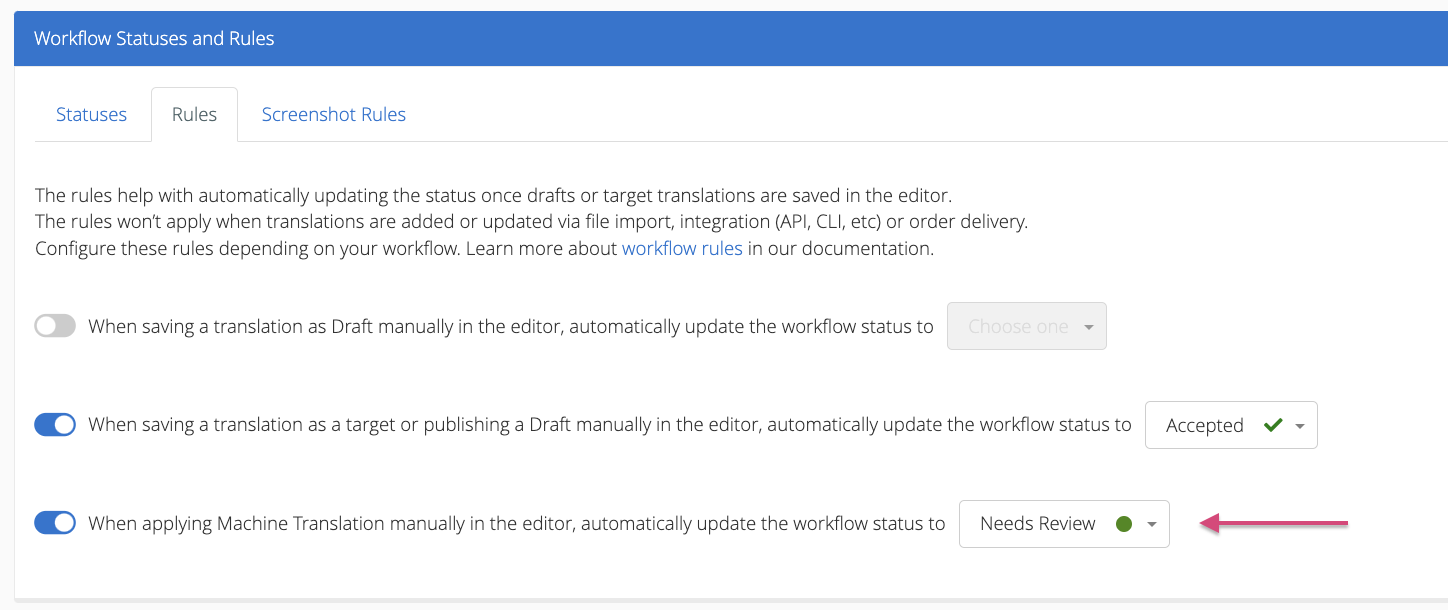
The machine translation rule allows teams to define which workflow status should be automatically applied to machine-translated strings.
When used in combination with user groups, reviewers can get notified when a set of strings has been translated, set to a specific status and is ready to be reviewed.
If you don't have in-house reviewers who can review the machine translation output, TransPerfect Translations Services can do that for you. You can send your strings to us via a translation order.
TransPerfect will take care of the machine translation and the post-editing step, during which a certified translator will review the machine translation output and ensure that the final translations have the desired quality.