Learn how the GL Strings AI solutions can support your app localization process
On this page
You can use our AI features to translate a string or to shorten and rephrase existing translations. Additionally, you can apply these actions to a single string or multiple strings at once.
Create a Project context prompt
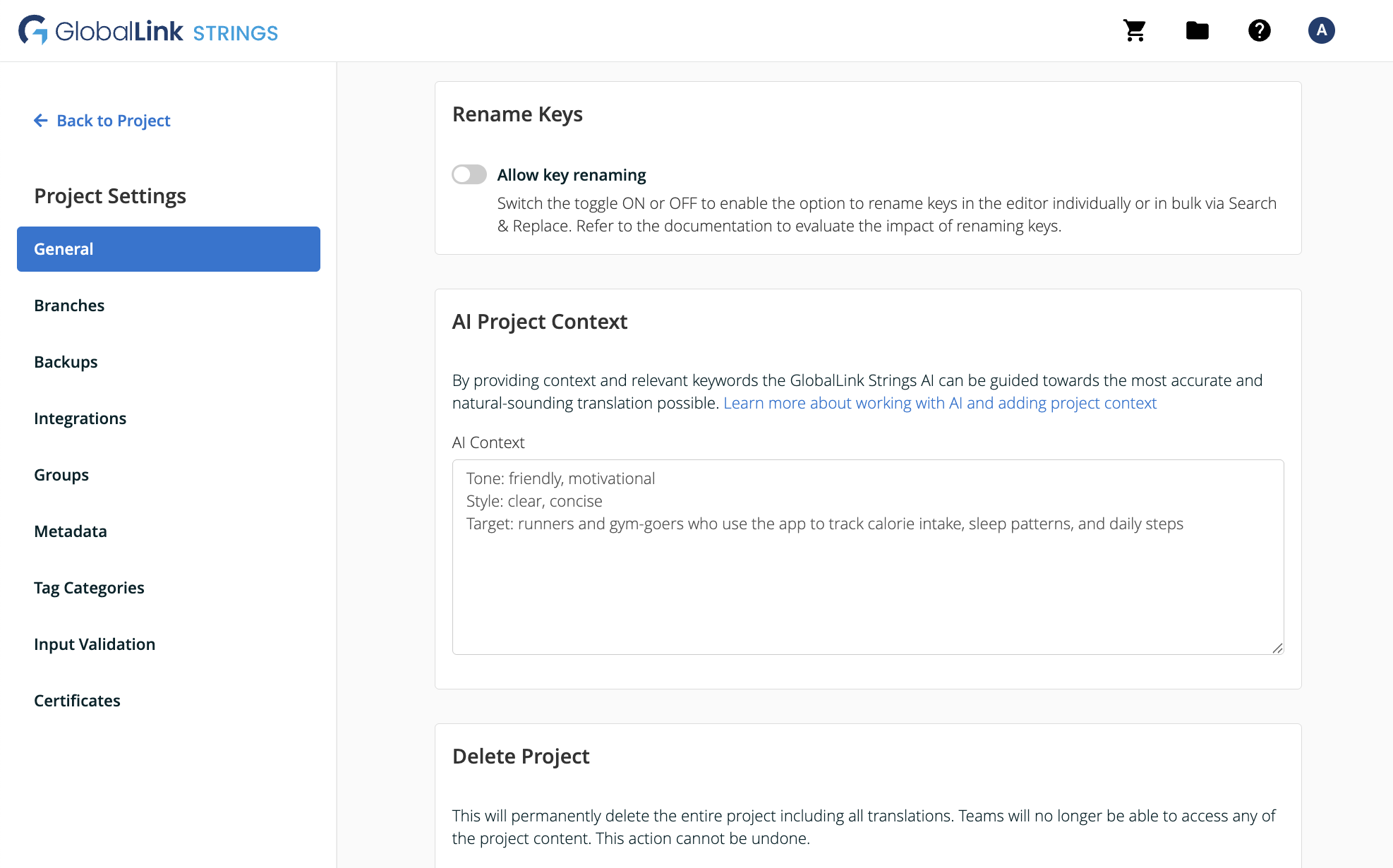
Before using any of our AI features, we recommend that you add a Project context prompt. The prompt should provide context and relevant information to help improve your translations.
Go to Project Settings > General
Under the AI Project Context section, enter a prompt.
Translate your strings with AI
Translate in bulk
Go to the Editor
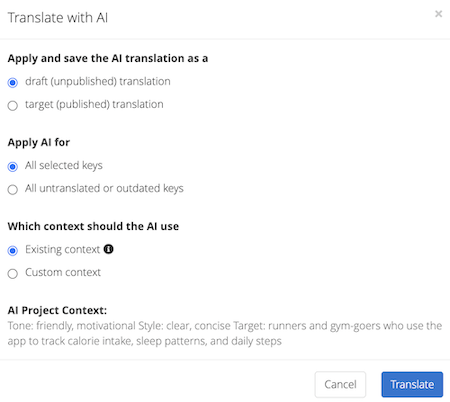
Select the strings that you want to translate and click Actions > Apply AI > Translate with AI
In the Translate with AI dialog, define how these translations should be applied:
Draft or Target (not applicable for Branching Projects)
All selected keys or all translated or outdated keys
Use the Project context or a custom context as a prompt
Translate a single string
Go to the Editor
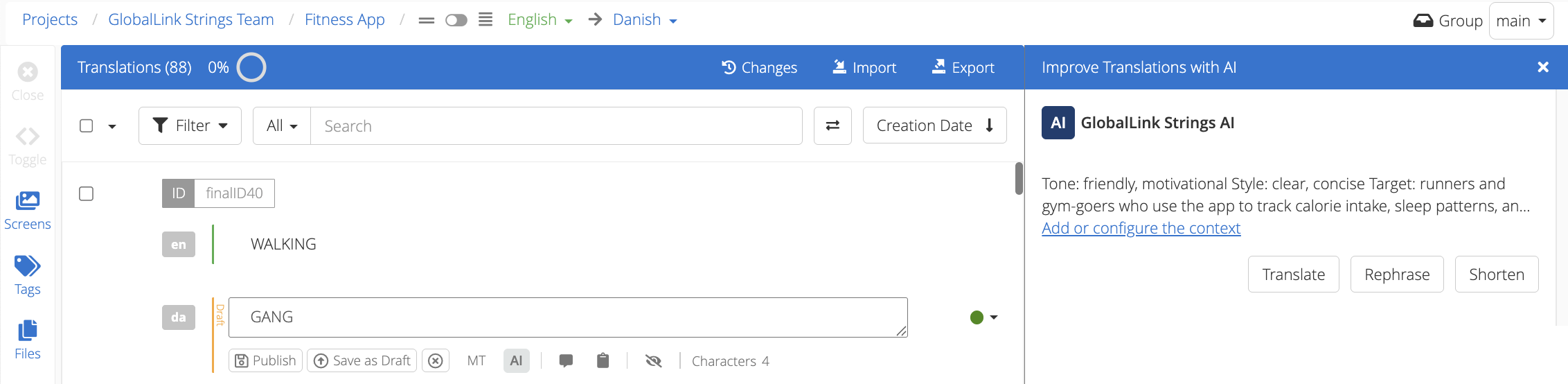
Click on a string that you want to translate and click AI
On the right-hand side panel, click Translate
Click Use Translation to populate the translation field with the suggested translation
Click Publish or Save as Draft to save the translation (in Branching Projects, you will only be able to publish it)
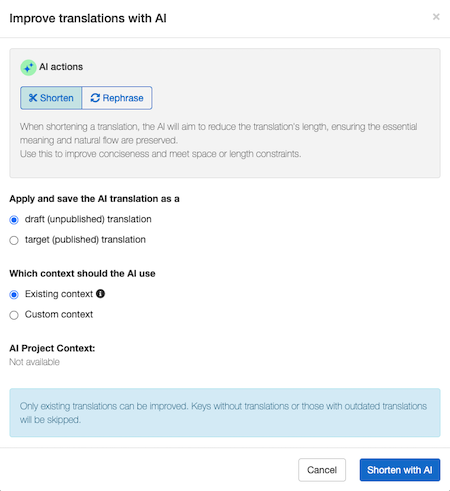
Select a translated string and click Actions > Apply AI > Improve translations with AI
In the Improve translations with AI dialog, define the scope:
Draft or Target (not applicable for Branching Projects)
Use the Project context or a custom context as a prompt
Shorten or rephrase a translated string
Go to the Editor
Click on a translated string and click AI
On the right-hand side panel, click Rephrase to obtain an alternative translation or Shorten to shorten it
Click Use Translation to populate the translation field with the suggested translation
Click Publish or Save as Draft to save the translation (in Branching Projects, you will only be able to publish it)
Character restriction considerations
When character restrictions are set for a key, GL Strings passes the maximum character length to the AI as instructions during the translation process. In most cases, the AI will produce a translation that fits within the supplied character limit.
However, the maximum character length is a best-effort constraint. It is not always a guaranteed limit for AI translations. In some cases, the AI may exceed the specified length, particularly:
For languages that typically require more characters than the source language (such as German or Russian).
When the character limit is too restrictive to preserve the original meaning or maintain a natural translation.
If a glossary term is included in the translation, glossary term enforcement takes precedence over character restrictions. In these cases, the AI may exceed the character limit to ensure the glossary terms are included in the translation.