This feature allows users to import backups to a project in case a project is corrupted.
On this page
A localization project can become complex quickly by undergoing constant changes in translations, workflows, and team composition. With the continuous development lifecycle across multiple team members, there is a potential for errors. New team members are not familiar with tools yet and accidentally overwrite translations, languages deleted in the heat of the moment, miscommunication leads to a reset of translation workflows or some technical error in the process can lead to the wrong translations in the wrong place.
To rectify possible errors in a GlobalLink Strings project, users have two options to can revert whatever might go wrong: Automatic Backups and Manual Backups. Automatic backups are created once a day whenever there are changes made to a project. Manual backups can be created by a user with the Admin user role at any time.
How to create a backup
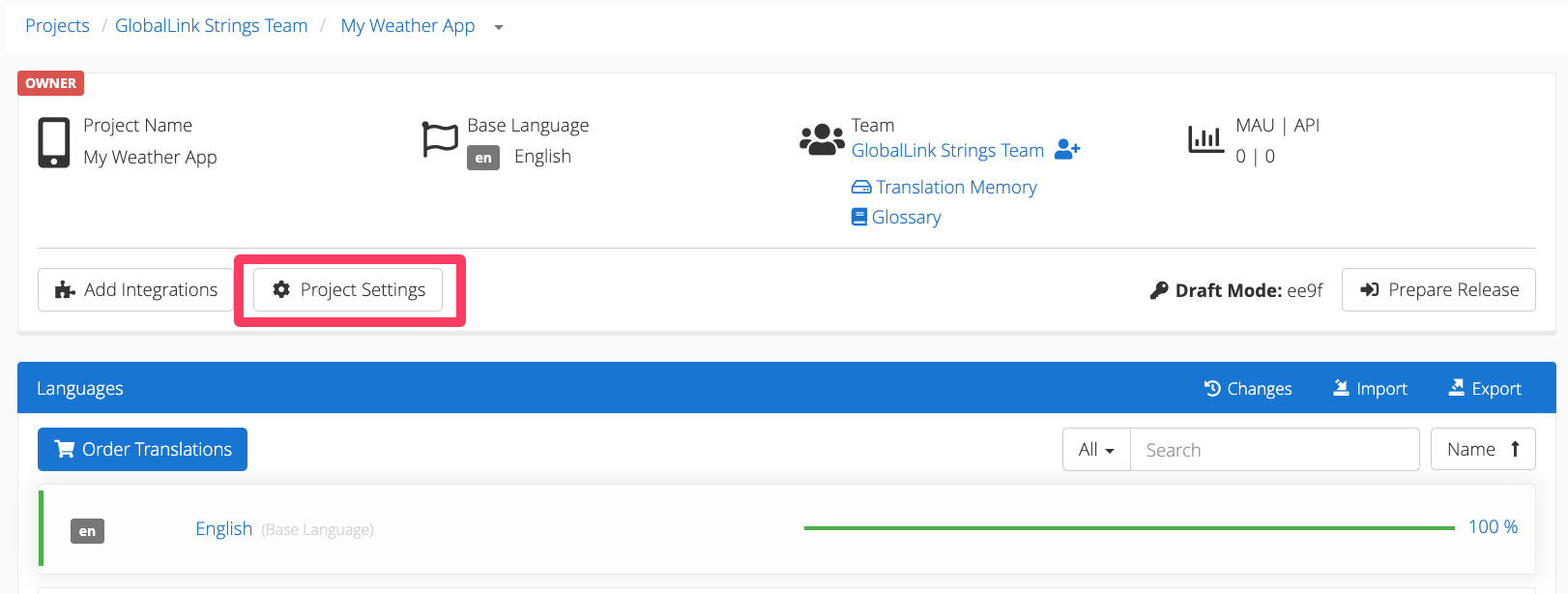
Open the Project Settings
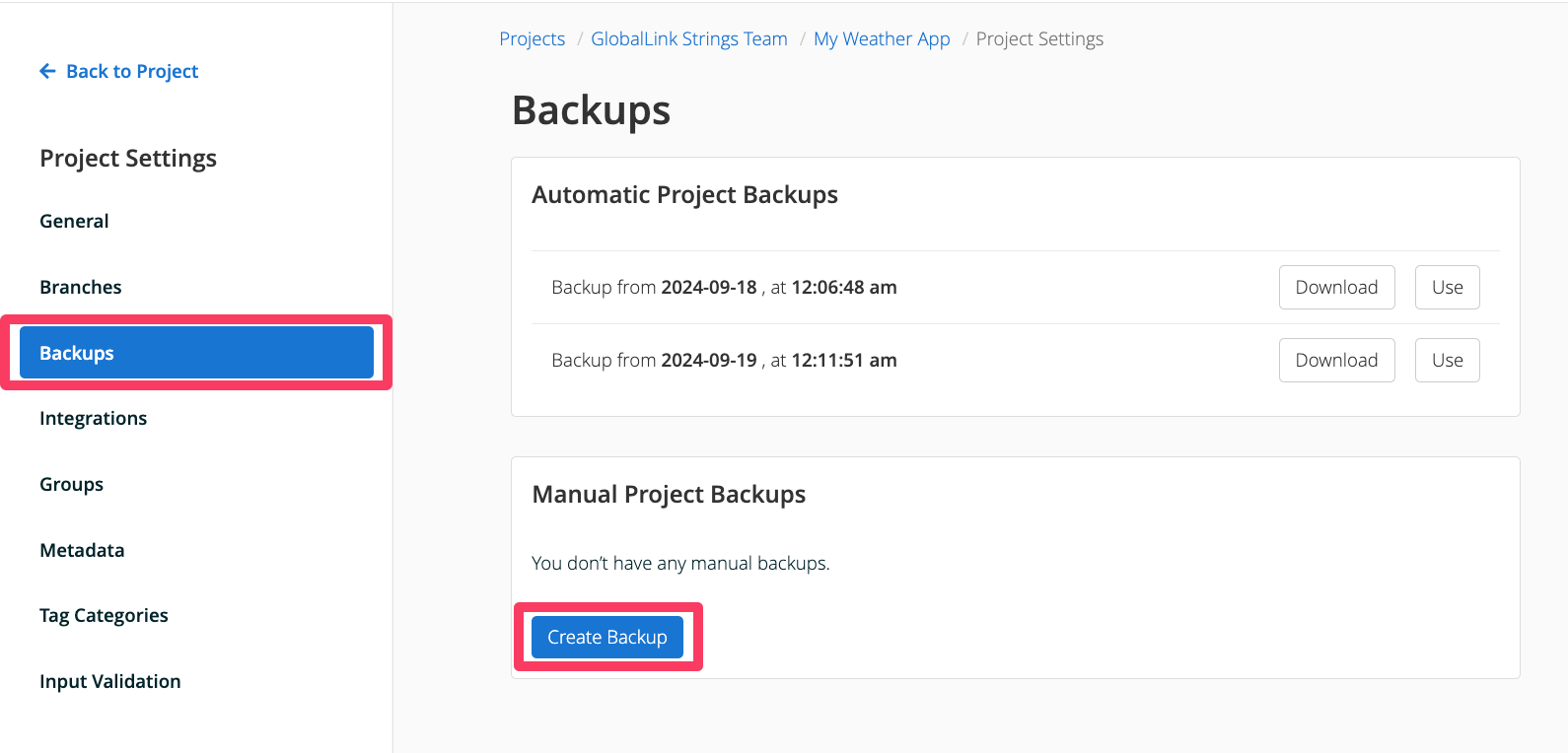
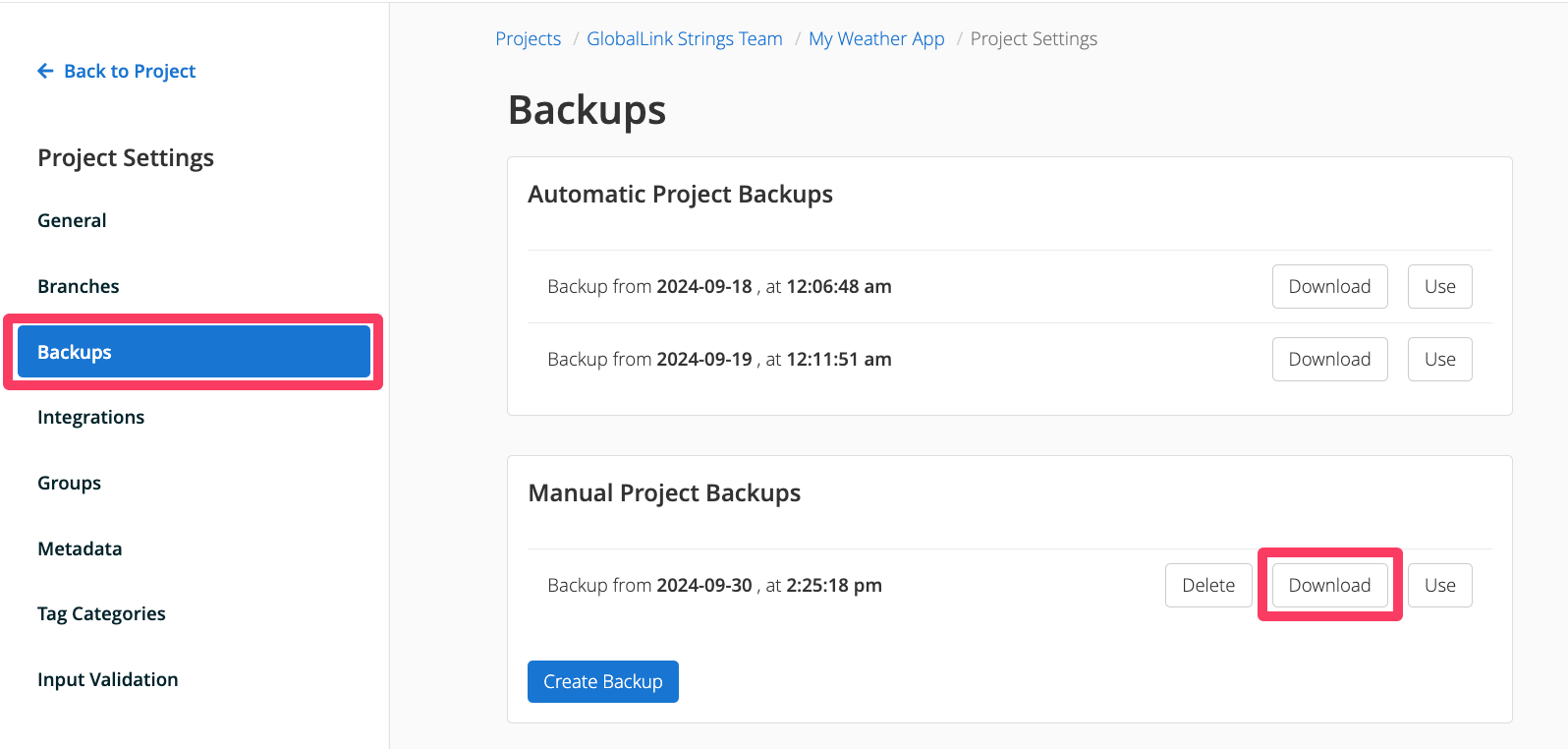
Navigate to the Backups tab then click Create Backup
How to import a backup
Open the Project Settings
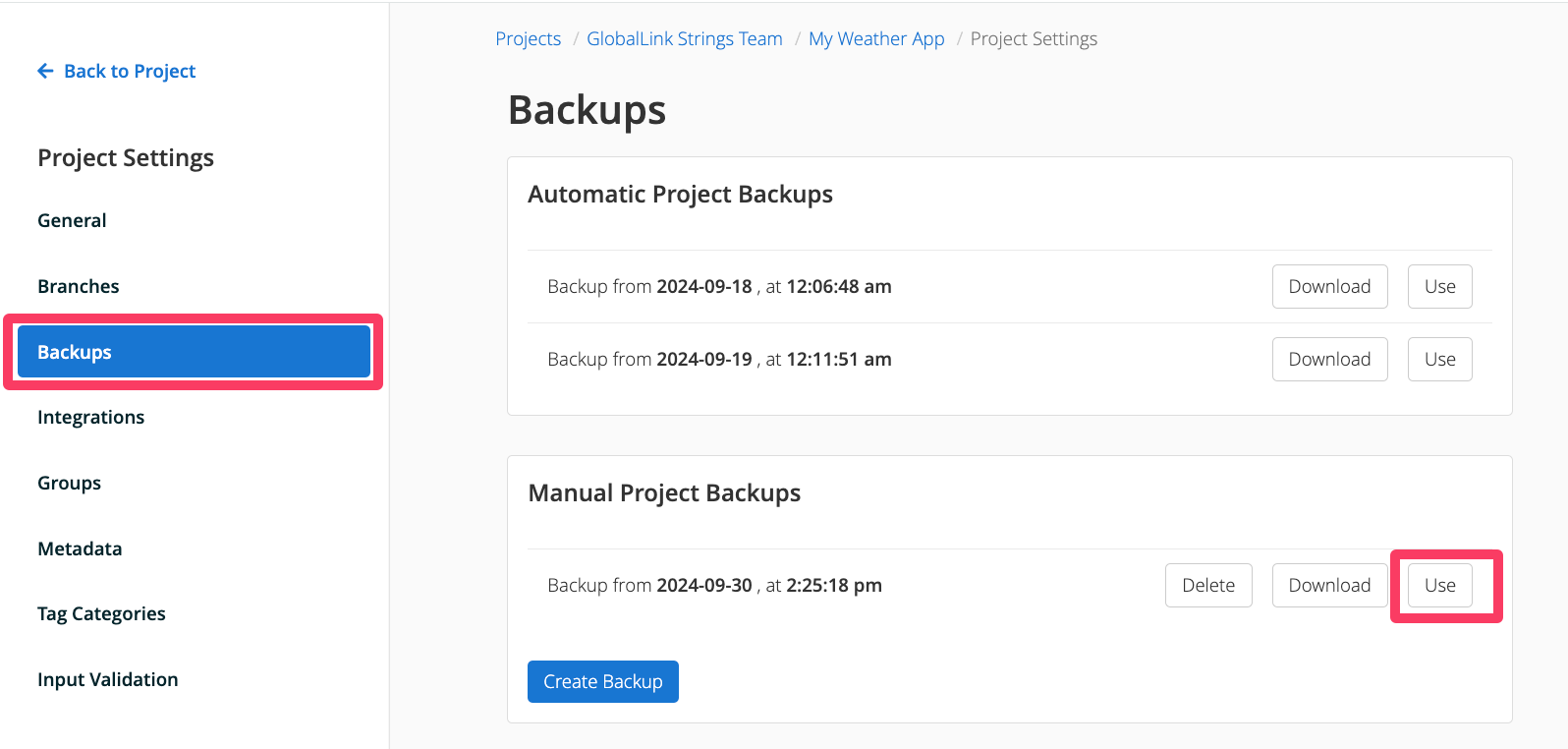
Navigate to the Backups tab, then click Import next to the backup you wish to import back into the project
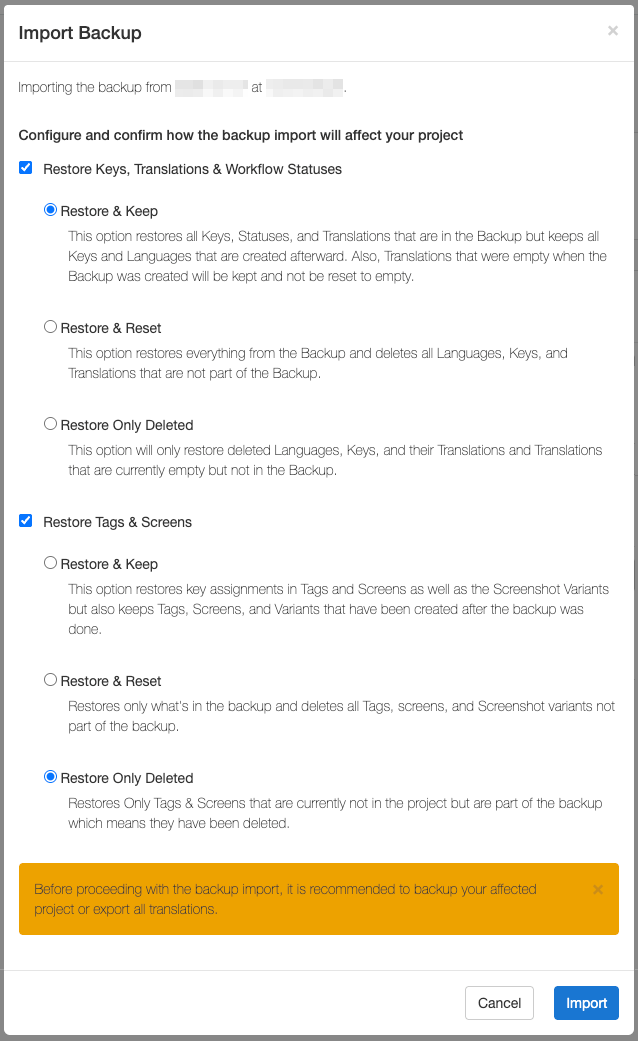
On the Import Backup dialog, select the elements that you wish to restore:
Keys, Translations & Workflow Statuses:
Restore & Keep: all keys, translations and workflow statuses from the backup will be imported into the project without deleting any of these existing ones from the project.
Restore & Reset: all keys, translations and workflow statuses from the backup will be imported into the project, and all existing ones in the project will be deleted.
Restore Only Deleted: restores only keys, translations or workflow statuses that were deleted from the project.
Tags & Screens
Restore & Keep: this option restores the key-tag and key-screen association (including screenshot variants). Additionally, it keeps the existing screens, screenshot variants and tags from the project.
Restore & Reset: this option restores the key-tag and key-screen association (including screenshot variants) and removes the existing screens, screenshot variants and tags.
Restore Only Deleted: this option restores the screens and tags that have been deleted from the project and are included in the backup.
How to download a backup for a specific language
This option allows users to be selective about which language a backup applies to. Please note that importing a backup for a specific language will reset the translations and their workflow status and their locked/unlocked status.
Open the Project Settings
Navigate to the Backups tab then click Download
Click Download under the specific language(s) which require a backup
To apply the language specific backup, go back to the project dashboard. On the Languages panel, click on the language you wish to restore to access the Editor View.
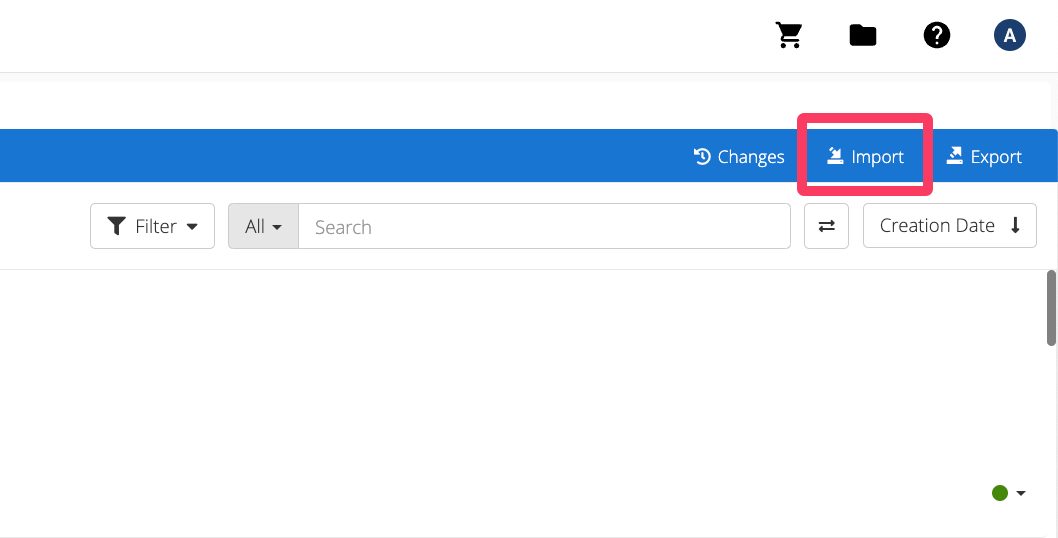
From the Editor View, click on the Import button at the top right corner
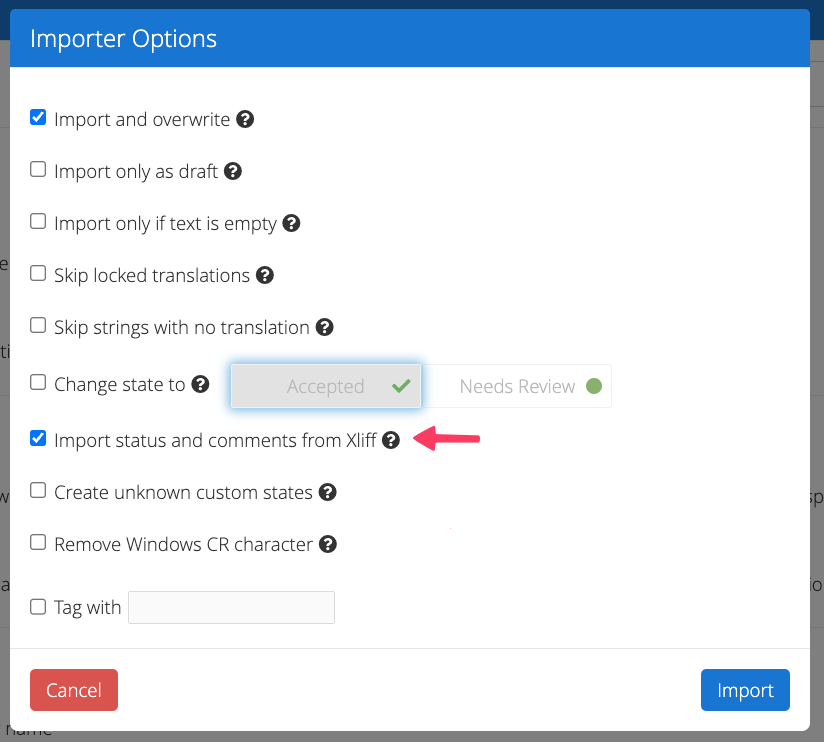
On the Importer Options pop-up, select the Import and overwrite and Import status and comments from Xliff options